FaceNinja

创作者套件 · 面向 VTuber · 免费

你的脸,你的直播。

把你的 FaceNinja 头部变成一个会说话、会随你而动的 MetaHuman,放在 Unreal Engine 5.8 里的一个小舞台上。你的编程智能体根据七个提示词来搭建。你打字,它开口说;你微笑,它也微笑。然后在 OBS 里采集画面。

版本 0.3.1 · 6.6 MB · MIT 许可证 · Windows 和 Mac

供脚本和智能体使用的大小与 SHA-256:version.json

套件
版本0.3.1
下载大小6.6 MB · zip
许可证MIT,盈利频道也可免费使用
需要Unreal Engine 5.8(免费)、一个 FaceNinja 头部,以及一个能使用 MCP 的编程智能体
运行环境Windows 10 或 11,macOS 14 或更新版本

一张照片,然后是一个会说话的头部。

创作者套件演示视频
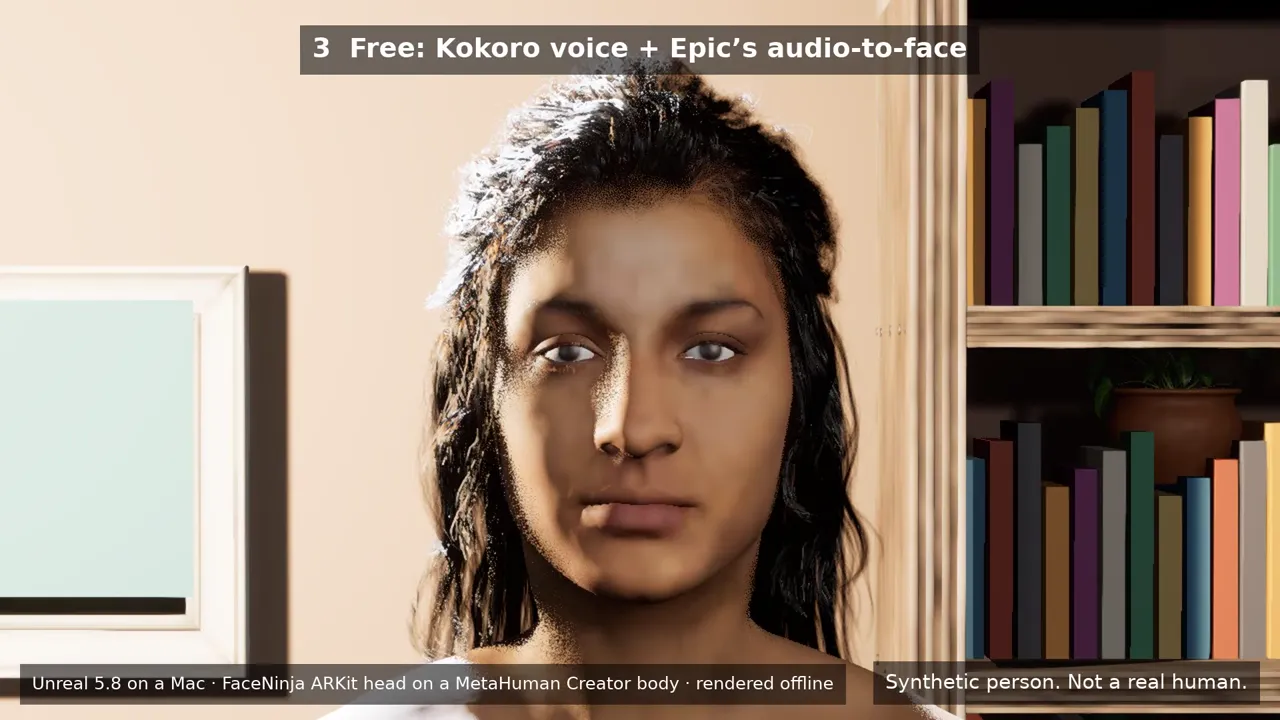
先是一张 AI 生成的照片,然后是用它生成的 FaceNinja 头部,最后是这个头部在套件的房间里说话,在 Unreal 5.8 中渲染。第一句:免费的 Kokoro 语音,配 Epic 免费的音频驱动口型同步。第二句:ElevenLabs 语音,配付费的 Runtime MetaHuman Lip Sync 插件。说话的头部是 FaceNinja 的 ARKit 头部(52 个混合变形,blendshape),装在 MetaHuman Creator 的身体和头发上,离线渲染。

视频里的每个人都是合成的。请使用你自己的脸和声音,或者原创角色。

下载视频(MP4,7.3 MB)

三个部分,一个晚上。

  1. 你的头部

    在 FaceNinja 里用你的照片生成头部,并下载 MetaHuman ZIP。

  2. 你的智能体搭建舞台

    解压套件,在那个文件夹里打开你的编程智能体,一次粘贴一个提示词,共七个。智能体通过 Unreal 自带的 MCP 服务器和套件的工具来操作 Unreal。

  3. 你来直播

    你的 iPhone 或摄像头驱动面部。打一行字,你的虚拟形象就会说出来。OBS 采集这个窗口。

不用写代码。每个提示词的结尾,都有一个你可以检查的结果。

下载量小,一切都已接好。

一个直播间

一个温馨的小房间,有沙发、书架、绿植和柔和的灯光,三个机位(特写、半身、全景),还有一块可以开关的绿幕。

你的 MetaHuman

一个工具导入你的 MetaHuman ZIP,把 MetaHuman Creator 的脸精确适配过来,并挑选最接近的头发、眉毛和睫毛。

面部追踪

iPhone 上的 Live Link Face,或者 Epic 的摄像头面部追踪。

打字说话

你的电脑上有一个小面板和一个语音服务器。免费的 Kokoro 语音在较新的显卡上约 0.1 s 开始发声。

为 OBS 准备好

在 1920×1080 的窗口里播放,供 OBS 窗口采集;需要自己的背景时可以用绿幕。Mac 上的 NDI 和 Windows 上的 Spout 是可选项。

也支持 GLB 和 FBX 头部

套件也能导入你头部的 GLB 或 FBX,包含 52 个 ARKit 混合变形,按真人大小导入,并设置好 Unreal 显示它们所需的材质选项。

另外还有智能体说明(AGENTS.md)和适用于 Claude Code、Codex、Cursor、VS Code 和 Gemini CLI 的 MCP 设置。

你需要什么。

电脑、软件和账号
项目推荐配置最低配置
电脑带 NVIDIA RTX 3070 或更好显卡的 Windows 11,或者 M2 Max 及更新芯片、32 GB 内存的 Mac带 RTX 显卡和 16 GB 内存的 PC,或者 M1 及更新芯片、16 GB 内存的 Mac(帧率较低)
磁盘可用 150 GB可用 100 GB
软件Unreal Engine 5.8、OBS、一根虚拟音频线(VB-CABLE 或 BlackHole)和一个编程智能体。提示词 1 会和你一起检查并安装它们。
账号FaceNinja,以及一个免费的 Epic Games 账号(用于 MetaHuman Creator 的绑定)
可选iPhone 12 或更新机型,装有免费的 Live Link Face 应用一个摄像头

默认免费。

免费

  • 套件本身(MIT 许可证)
  • Unreal Engine 5.8、MetaHuman Creator 和 Live Link Face
  • Epic 的音频驱动口型同步
  • OBS、BlackHole 和 VB-CABLE(欢迎捐赠)
  • Kokoro 和 Chatterbox 语音,在你的电脑上运行

付费,仅在你选择时

  • 你的 FaceNinja 头部,以积分计(价格)
  • ElevenLabs 语音,使用你自己的 ElevenLabs 账号,由 ElevenLabs 按字符计费
  • Fab 上的 Runtime MetaHuman Lip Sync 插件:年收入低于 US$100,000 的创作者,每个席位约 US$280;高于则为 US$840

Unreal 不对直播或录制的视频收取版税。其他公司产品的价格截至 2026 年 10 月;请查看它们的网站。

复制,粘贴,检查。

按顺序一次粘贴一个,等你的智能体做完再粘贴下一个。每个提示词的结尾,都写明了你应该看到什么。

每个语言版本里,提示词都保持英文,因为你的智能体需要原样读取工具名和文件名。你可以用自己的语言和智能体交流。

01 · 安装所需软件

用时:20–90 分钟,主要是下载

提示词 · 英文
I am setting up the FaceNinja Creator Kit in this folder. I do not write code, so explain each step in one short
sentence and ask me before anything that needs my password, installs a driver, or changes system settings.

1. Tell me my operating system, CPU, RAM, graphics card and free disk space, and compare them with the
   "What you need" table in GUIDE.md. Warn me if something is below the minimum.
2. Check what is installed and tell me what is missing:
   - Unreal Engine 5.8 (Windows: C:\Program Files\Epic Games\UE_5.8; Mac: /Users/Shared/Epic Games/UE_5.8).
     If it is missing, do not install it yourself: tell me to install Unreal Engine 5.8 from the Epic Games
     Launcher's Library tab (default options), and wait until I say it is done.
   - OBS Studio. Offer to install it (Windows: winget install OBSProject.OBSStudio; Mac: brew install --cask obs).
   - A virtual audio cable. Windows: VB-CABLE from https://vb-audio.com/Cable/ (I run its installer as
     administrator and restart). Mac: brew install --cask blackhole-2ch (it asks for my password).
     Only from these places.
   - uv (https://docs.astral.sh/uv/getting-started/installation/).
3. In tts/, make the voice environment: uv venv -p 3.11, then uv pip install -r requirements-kokoro.txt
   (on a PC with an NVIDIA card add --extra-index-url https://download.pytorch.org/whl/cu128).
4. Run uv run python server.py --list-devices in tts/ and show me the output devices.

End with a checklist: Unreal 5.8, OBS, virtual cable, voice environment, each with a tick or a cross.

你应该看到:四个对勾:Unreal 5.8、OBS、音频线和语音。

02 · 把智能体连接到 Unreal

用时:10–20 分钟

提示词 · 英文
Open the kit's Unreal project and connect to Unreal's own MCP server.

1. Open FaceNinjaCreatorKit/FaceNinjaCreatorKit.uproject with Unreal Engine 5.8 (Mac: open -a with
   "/Users/Shared/Epic Games/UE_5.8/Engine/Binaries/Mac/UnrealEditor.app" and the project path; Windows:
   "C:\Program Files\Epic Games\UE_5.8\Engine\Binaries\Win64\UnrealEditor.exe" with the project path).
   Tell me the first start takes several minutes while it compiles shaders.
2. The project starts Unreal's MCP server at http://127.0.0.1:8000/mcp. This folder already has the MCP
   settings for you (.mcp.json, .cursor, .vscode, .gemini, .codex). If you cannot see an "unreal-mcp" server,
   tell me how to reload your MCP settings, or add that URL yourself.
3. Wait until the server answers, then list the toolsets. You should find FaceNinjaKitTools. Describe it and
   tell me in one sentence per tool what you can now do for me.

你应该看到:你的智能体列出 FaceNinja 的工具。

03 · 搭建你的舞台

用时:2–5 分钟

提示词 · 英文
Using FaceNinjaKitTools in Unreal, build my streaming stage.

1. Call build_stage. It makes a small room with a sofa, a bookshelf, a plant, lights and three cameras.
2. Take a still from each camera with stage_screenshot (closeup, bust, wide) and show them to me.
3. Ask me which camera I want for streaming and call set_camera with it.

你应该看到:三张房间的静态图。

04 · 导入你的 FaceNinja 头部

用时:15–30 分钟

提示词 · 英文
Using FaceNinjaKitTools in Unreal, turn my FaceNinja head into a MetaHuman and put it on my stage.
My head ZIP is: <drag the ZIP file here>

1. Call import_head_zip with that path. Tell me which hair, brows and lashes it picked.
2. Tell me that the next step sends my head's shape (not my photos) to Epic's free MetaHuman service, and that
   a browser window may ask me to sign in to my Epic account. Wait for my OK.
3. Call preview_avatar so I can see my head in the room, and show me a stage_screenshot (bust camera).
4. Call rig_head, then download_head_textures. Tell me: "A browser opens Epic's sign-in page. Unreal stops
   answering until you sign in and approve it there; that is normal." Wait until I say I approved it, then
   check head_status every 30 seconds until rigged and high_res_textures are both true.
5. Once rigged: call build_metahuman, then place_avatar.
6. Take a stage_screenshot with the bust camera and show it to me.

你应该看到:你的 MetaHuman 出现在房间里。

05 · 连接 iPhone 或摄像头

用时:10 分钟

提示词 · 英文
Using FaceNinjaKitTools in Unreal, connect my iPhone's Live Link Face app to my avatar.

1. Call my_ip_address. Tell me where to type it in the app (Settings > Live Link > Add Target, port 14785).
2. Ask me for the phone's IP address (Live Link Face shows it in its settings), then call connect_iphone.
3. Call connect_face with FN_iPhone, then play_in_window.
4. Ask me to smile, blink and turn my head, and whether the avatar follows. Ask before changing any firewall
   setting.

你应该看到:虚拟形象会跟着你的脸动。

06 · 打字说话

用时:10 分钟

提示词 · 英文
Start the kit's voice server and connect it to my avatar.

1. Ask me which voice I want:
   a. a free preset voice that runs on my computer (Kokoro, default),
   b. my own voice (Chatterbox): ask me to record 10-20 seconds of myself reading any text in a quiet room as
      tts/my_voice.wav, then set it up with requirements-chatterbox.txt,
   c. a studio voice from ElevenLabs: it needs my own ElevenLabs account, costs money per line and sends my text to ElevenLabs.
      Ask me to put my own ElevenLabs API key in the ELEVENLABS_API_KEY environment variable myself; never write it to a file.
2. In tts/ start the server in the background with my cable as --device ("BlackHole" on a Mac, "CABLE Input" on
   Windows):
   a. uv run python server.py --engine kokoro --preset af_heart --device "<cable>"
   b. uv run python server.py --engine chatterbox-turbo --voice my_voice.wav --device "<cable>"
   c. uv run python server.py --engine elevenlabs --voice Rachel --device "<cable>"
3. In Unreal, using FaceNinjaKitTools: voice_status, then connect_voice (it listens on the cable), then
   connect_face with FN_Voice, then play_in_window, then open_talk_panel.
4. Call say with "Hi everyone, welcome back to the stream!" and ask me if the lips moved with the voice.

你应该看到:它会说出你打的那行字,嘴唇随之动起来。

07 · 用 OBS 开播

用时:10 分钟

提示词 · 英文
Help me show my avatar in OBS Studio.

1. In Unreal, using FaceNinjaKitTools: play_in_window (1920x1080). If I want my own background instead of the
   room, call set_green_screen with true first.
2. In OBS add a "Window Capture" (Windows) or "macOS Screen Capture" set to that Unreal window. Tell me the
   clicks; you cannot click in OBS for me.
3. Only with the green screen: add a "Chroma Key" filter (key colour green) and show me where "Similarity" is.
4. Add an "Audio Input Capture" of "CABLE Output" (Windows) or "BlackHole 2ch" (Mac), and set its
   "Audio Monitoring" to "Monitor and Output" so I hear the voice too.

你应该看到:你的虚拟形象出现在 OBS 里,并带有声音。

每一步的说明,以及出问题时该怎么办,都在压缩包里的 GUIDE.md 中。

三种语音。

打字说话可用的语音
语音运行位置首次发声费用备注
Kokoro(默认)你的电脑在 RTX 5080 上约 0.08 s,在 M5 Max Mac 上约 0.09 s免费(Apache-2.0)8 种语言的 54 种预设声音
你自己的声音(Chatterbox)你的电脑在 RTX 5080 或 M5 Max Mac 上约 0.7–1.1 s免费(MIT)用你自己录的 10–20 秒音频生成。每段音频都带有听不见的水印,标明它是合成的。
云端语音(ElevenLabs)云端取决于你的网络;我们没有测量由 ElevenLabs 按字符、按你的套餐计费你打的字会发送给 ElevenLabs。你需要自备 ElevenLabs 账号和 API 密钥。

首次发声:从发送一行文字到出现第一段音频的时间,2026 年 10 月通过套件的语音服务器测得。

关于套件的问题。

01我需要写代码吗?
不需要。你粘贴提示词;你的智能体运行工具,并把结果的图片展示给你。
02能在 Mac 上用吗?
能,需要 M1 或更新芯片的 Mac 和 Unreal 5.8。Epic 的实时面部工具从 Unreal 5.8 起可在 Mac 上运行。
03哪些东西会离开我的电脑?
MetaHuman Creator 构建绑定时,你的头部形状会发送给 Epic。如果你选择云端语音,你打的字会发送给 ElevenLabs。除此之外没有别的:没有照片,没有录音。
04我能出售用它制作的视频吗?
能。套件采用 MIT,Unreal 不对视频收取版税,Kokoro 和 Chatterbox 允许商用。ElevenLabs 和 Fab 的部分,请查看它们的条款。
05付费口型同步插件包含在内吗?
不包含。它在 Fab 上按席位出售。免费方案用的是 Epic 自己的音频驱动口型同步。
06我能把我的虚拟形象做成应用分享出去吗?
用免费口型同步不行:Epic 的音频源在编辑器里(Play)可用,VTuber 直播就是这样运行的。打包出来的应用需要付费插件。
07我只有 GLB 或 FBX,能用吗?
能,用于静态图和动画。文件的单位是米,所以头部会按真人大小导入,套件还会在材质上打开 Used with Morph Targets,这样混合变形就不会渲染成黑色。实时面部和语音驱动的是 MetaHuman,所以直播请用 MetaHuman ZIP。更多内容见 Unreal 说明 EN。

许可证。

套件采用 MIT(压缩包里的 LICENSE)。房间里的美术资源是来自 Poly Haven 的 CC0。其他一切(Unreal、MetaHuman、OBS、音频线、语音、可选插件)都由你自己安装,各自遵循自己的许可证;压缩包里的 THIRD_PARTY.md 逐一列出了每一项和它的链接。

准备好了吗?先创建你的头部,再下载套件。